
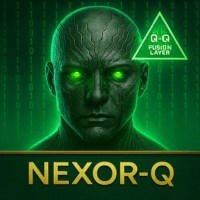

Available soon
Nexor Q is an MetaTrader 5 expert advisor that combines volatility, price action and momentum readings to decide when to trade, and scales position size according to market stability. It is aimed at trend and momentum approaches.
Get one message the moment it launches, with its price.
Nexor Q is an expert advisor for MetaTrader 5 that places and manages trades without manual input. It is built around the idea of trading only when several market readings agree, and of sizing positions according to how stable conditions look.
The entry logic combines three kinds of input into a single decision rather than relying on one fixed indicator threshold. According to the author, these are:
Because it is oriented towards trend and momentum, it is generally aimed at markets that move in clear phases rather than ranges. Sideways, choppy conditions can be a challenge for this kind of approach.
Instead of a single fixed risk percentage, the EA is described as adjusting exposure to market stability. It reduces or pauses new trades when volatility spikes unexpectedly, increases size only after a stretch of stable behaviour, and applies an internal limit on how much exposure can be open at once. These are design intentions, and they do not remove the possibility of losses or drawdowns.
A longer-horizon filter reviews historical market behaviour and is meant to set aside patterns that have stopped working, while adjusting sensitivity to the current volatility regime.
This listing does not give a definitive list of symbols or a single required timeframe. Before running it live, check the author's product page and the linked live signal to see which instruments and chart period are used, and make sure your broker offers the same symbols with similar spreads and trading hours.
Exact input names and default values are not reproduced here. Open the EA's Inputs tab after attaching it to a chart and review each option before enabling live trading. Typical areas to check are shown below.
| Area | What to check |
|---|---|
| Lot or risk mode | Whether size is automatic or fixed, and the limits that apply |
| Exposure limit | Maximum simultaneous positions or total exposure |
| Symbol and timeframe | The chart the author recommends |
| Trade identifier | Magic number, so it does not clash with other EAs |
| Time or spread filters | Any limits on trading hours or high spreads |
The store lists an average rating of 1.4 from 5 reviews on the original marketplace. This is a small sample, but read the reviews and the live signal history yourself and compare them with any back-test figures before deciding.
Trading carries risk and you can lose some or all of your capital. Back-tests and signal history are based on the past, and past results do not predict future ones. Test on a demo account first and only trade with money you can afford to lose.
Keep the terminal running and connected while the EA is active. A VPS is a common way to do this.
| Product type | Expert Advisor |
|---|---|
| Platform | MetaTrader 5 (MT5) |
| Strategy focus | Signals, Trend, Momentum |
| Delivery | Download from your account after purchase |
| License key | Not needed |
| Status | Launching soon |
| Category | Expert advisor (automated trading) |
| Strategy tags | Signals, trend, momentum |
| Markets | Check the product page and signal for the supported symbols |
| Timeframes | Check the product page for the recommended timeframe |
| Trade style | Automated entries filtered by volatility and momentum |
| Risk handling | Adaptive position sizing with a cap on simultaneous exposure |
| Requirements | MT5 terminal, algo trading enabled, stable connection or VPS |
No reviews yet. Customers who own Nexor Q EA MT5 can review it here.
No. This listing is the MetaTrader 5 build and it will not load in MT4. If you trade on MT4, look for a product that is listed for that platform.
Copy the expert advisor file into the Experts folder of your MT5 data directory (File, Open Data Folder, MQL5, Experts), restart the terminal or refresh the Navigator, then drag the EA onto a chart. Make sure Algo Trading is switched on in the toolbar.
These details are not fixed in this listing, so check the author's product page and the live signal for the symbols, timeframe and account size they use. Run the EA on a demo account first and confirm that your broker's spreads, leverage and contract sizes are comparable.
It should run on any broker that offers MT5 and allows expert advisors, but results depend on spreads, execution speed and symbol naming. Check that the symbol suffix and trading hours at your broker suit the settings you use.
An automated system only trades while the terminal is running and connected. A VPS is a common way to keep MT5 online without interruption, but it is not mandatory if your computer stays on and connected.
No. Back-tests and signal history describe what happened in the past. Trading carries risk, you can lose capital, and past results do not predict future ones.
Nexor Q EA MT5
Notify me at launchQuestions about this tool?
Ask us on Telegram Install guide for MT4 and MT5 Get a custom version builtFree, practical help with testing, sizing and running expert advisors.
More MT5 tools with a similar focus.






Own Nexor Q EA MT5? Sign in to review it.